Frigate Profile Switching
Auto Arm can switch the active Frigate Profile as the alarm state changes. For example, your cameras could record and send notifications only while the alarm is armed_away, or skip detection on indoor cameras while disarmed.
Info
Even if you never use alarm panels for anything else, Auto Arm is the easiest way to manage Frigate profiles based on occupancy, calendar events, sun state or physical buttons.
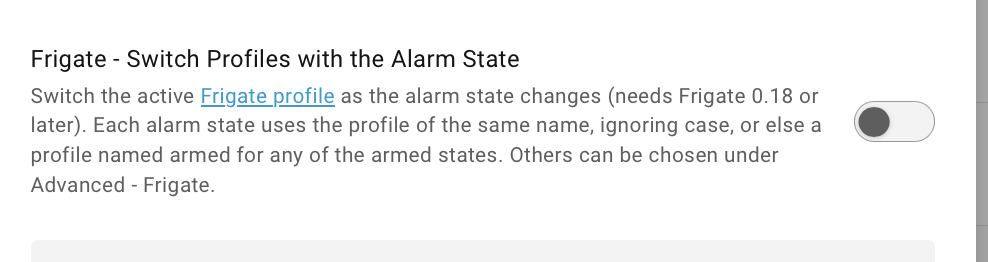
This needs Frigate 0.18 or later, and the Frigate Integration, which provides a Profile select entity (once at least one profile is defined in Frigate).
Set up the Profiles in Frigate
Tip
Profiles can be configured in Frigate's web based Settings UI as well as directly in YAML.
If your standard Frigate config is hyper-vigilant, then you probably only need a single disarmed profile with relaxed settings, since Auto Arm will set Frigate back to its default if the alarm state changes and the new state isn't mapped to a profile. A single armed profile will by default map to all armed states, or if you want create multiple armed profiles.
Profiles named after alarm states are matched up automatically, so naming them that way needs no further setup in Auto Arm:
profiles:
  disarmed:
    friendly_name: Disarmed
  armed_away:
    friendly_name: Away

cameras:
  living_room:
    profiles:
      disarmed:
        detect:
          enabled: false
Profiles can only override what's already in the base config. See the Frigate docs for the constraints, such as recording having to be enabled in the base config.
Configure Auto Arm
When the Frigate integration has a Profile select, Auto Arm's setup and Options show Frigate - Switch Profiles with the Alarm State. Switch this on, and each alarm state is matched to a Frigate profile by name, ignoring case:
| Frigate profiles | Alarm state | Profile used |
|---|---|---|
Disarmed, armed | disarmed | Disarmed |
Disarmed, armed | armed_away | armed |
armed, armed_night | armed_night | armed_night |
armed, armed_night | armed_home | armed |
quiet | armed_home | base config |
A profile named armed covers all the armed states, unless one has a profile of its own name.
Overriding the Matches
The Advanced - Frigate section of the Options is only needed to change the matches, if more than one alarm state goes to the same profile, or if you have a complex Frigate setup and need to override the profile selector.
- a profile for each alarm state, filled in with the profile matched by name, to change to another of Frigate's profiles, or one typed in
- Frigate profile select, at the bottom: only needed with more than one Frigate server, otherwise the Frigate integration's Profile select is always used
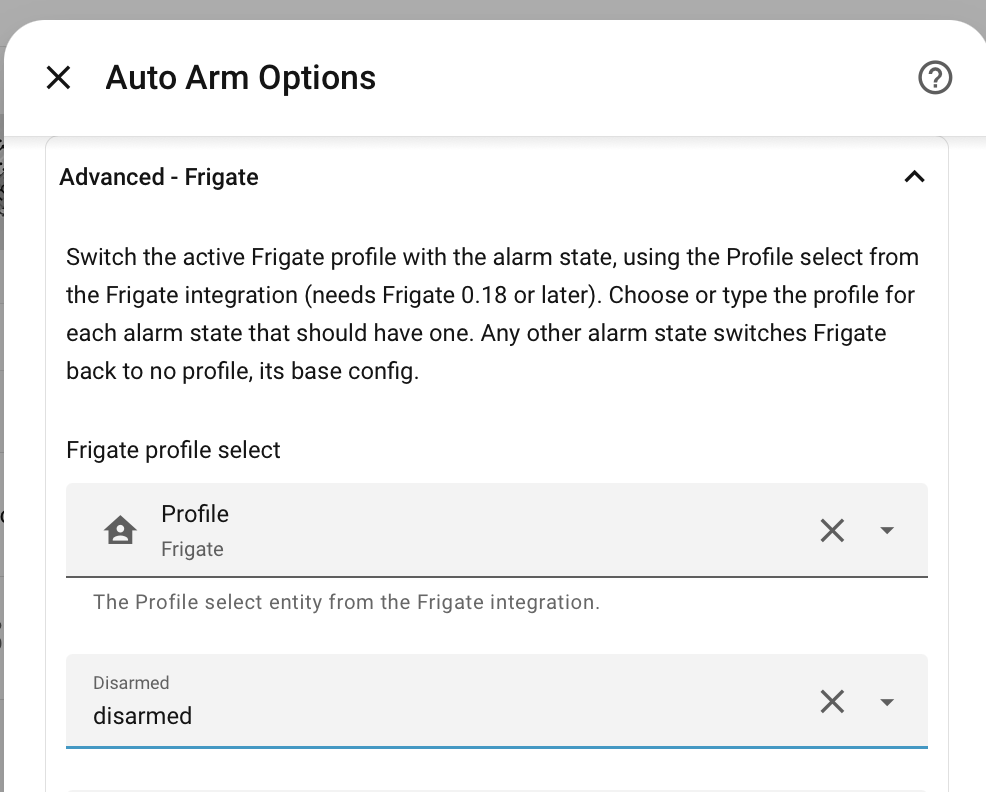
Clear a state, or choose Base Config, to keep Frigate on its base config for that state.
Only the changes you make are saved. States left as filled in go on being matched by name, so a profile added to Frigate later is used without coming back to the Options. A state you clear, or change, stays as you set it, even after Home Assistant restarts.
Whenever the alarm panel moves to a state with a profile, whatever changed it, Frigate is switched to that profile. Any other alarm state switches Frigate back to its base config.
Some states leave the profile as it is:
- transitional states, like
arming,pendingandtriggered - an alarm panel that is unavailable
Auto Arm also brings Frigate up to date when Home Assistant starts, and when the Profile select becomes available again after Frigate has been offline. It doesn't switch back a profile you choose by hand in Frigate. It only changes the profile again when the alarm state next changes.
If the profile given for an alarm state isn't in Frigate, Auto Arm logs a warning and switches Frigate back to its base config.
Other Ways to Switch
Home Assistant Select Entity
You can also change the profile selection via the Home Assistant select.frigate_profile entity.

Tip
When Auto Arm changes the profile, it does so using full Home Assistant Context and Logbook integration, so you will able to track that on the state history for select.frigate_profile and all the way back to whatever triggered Auto Arm.
From Frigate
Frigate shows the current profile at the bottom of the screen, and clicking on it leads to the switching page, which also has controls to add/edit/delete profiles.
